Using the Dictionary Command
The /dictionary command allows you to create, manage, and assign custom dictionaries to different sources. This gives you powerful control over the content you see.
Getting Started
To get started with dictionaries, use the following subcommands:
/dictionary create/dictionary view/dictionary edit/dictionary delete
The Dictionary Interface
The dictionary system is managed through a series of commands and interactive modals.
Creating a Dictionary
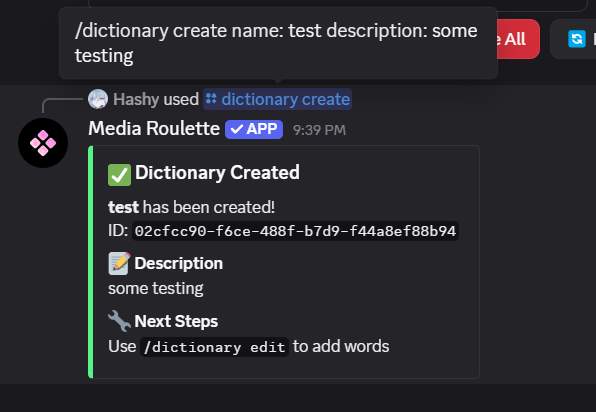
To create a new dictionary, use the /dictionary create command.
Usage: /dictionary create <name> <description>
- name: The name of your dictionary.
- description (optional): A brief description of your dictionary.
Viewing Your Dictionaries
To view your created dictionaries, use the /dictionary view command.
Usage: /dictionary view <id>
- id: The ID of the dictionary you want to view.
This will show you the dictionary's information, including its words and assignments.
Editing a Dictionary
To edit a dictionary, use the /dictionary edit command. This will open an interactive menu.
Usage: /dictionary edit <id>
- id: The ID of the dictionary you want to edit.
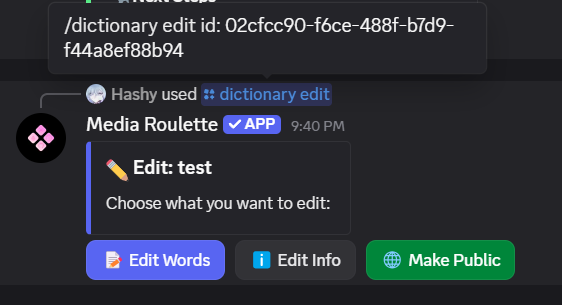
In the edit menu, you can:
- Edit Info: Change the dictionary's name and description.
- Edit Words: Add or remove words from the dictionary.
- Toggle Public: Make your dictionary public for others to use.
Deleting a Dictionary
To delete a dictionary, use the /dictionary delete command.
Usage: /dictionary delete <id>
- id: The ID of the dictionary you want to delete.
Assigning Dictionaries to Sources
To assign a dictionary to a source, you'll use the /settings command.
Assigning a Dictionary
Usage: /settings assign <source> <dictionary>
- source: The source you want to assign the dictionary to.
- dictionary: The ID of the dictionary you want to assign.
Unassigning a Dictionary
Usage: /settings unassign <source>
- source: The source you want to unassign the dictionary from.
Using the Default Dictionary
Usage: /settings assigndefault <source>
- source: The source you want to revert to the default dictionary.
You can use /settings reset to reset every setting to default, including all dictionary configurations and assignments. This is useful if you want to start fresh with all your customizations.
Tips
- Use dictionaries to customize the content you receive from sources like
reddit,google, and4chan. - Public dictionaries can be used by other users.
- You can view all your dictionary assignments with
/settings assignments. - You may share your config by using
/settings shareconfig <title> <description>, which includes dictionary assignments and chances.